
Finance, GST & Accounting · Inventory
Material Receiving Review
Check what warehouse staff reported against the paperwork, then approve it into stock, send it back for correction or reject it.
What it is for
This is Finance's side of Material Receiving. Every receipt a warehouse submits lands here, and nothing it reports has touched stock or the books yet.
Approving a receipt creates the goods receipt against the purchase order, which adds the stock - and drafts the purchase bill if a supplier invoice is attached. You still review and post that draft yourself, under Bills.
How it works
- The page opens on Pending review. Switch between Pending review, Correction requested, Approved, Rejected and All to see a receipt wherever it is.
- You have three choices on a receipt: Approve it, Request correction (the warehouse edits and resubmits the same receipt), or Reject it for good. Both of the last two need a reason, which the warehouse sees.
- If the receipt was submitted without a purchase order, use Change purchase order to attach the right one before approving.
Step by step
Every screenshot is from the live demo. The highlighted button is the one to click - nothing here is saved in the demo, so you can follow along freely.
- 1
Open the review queue
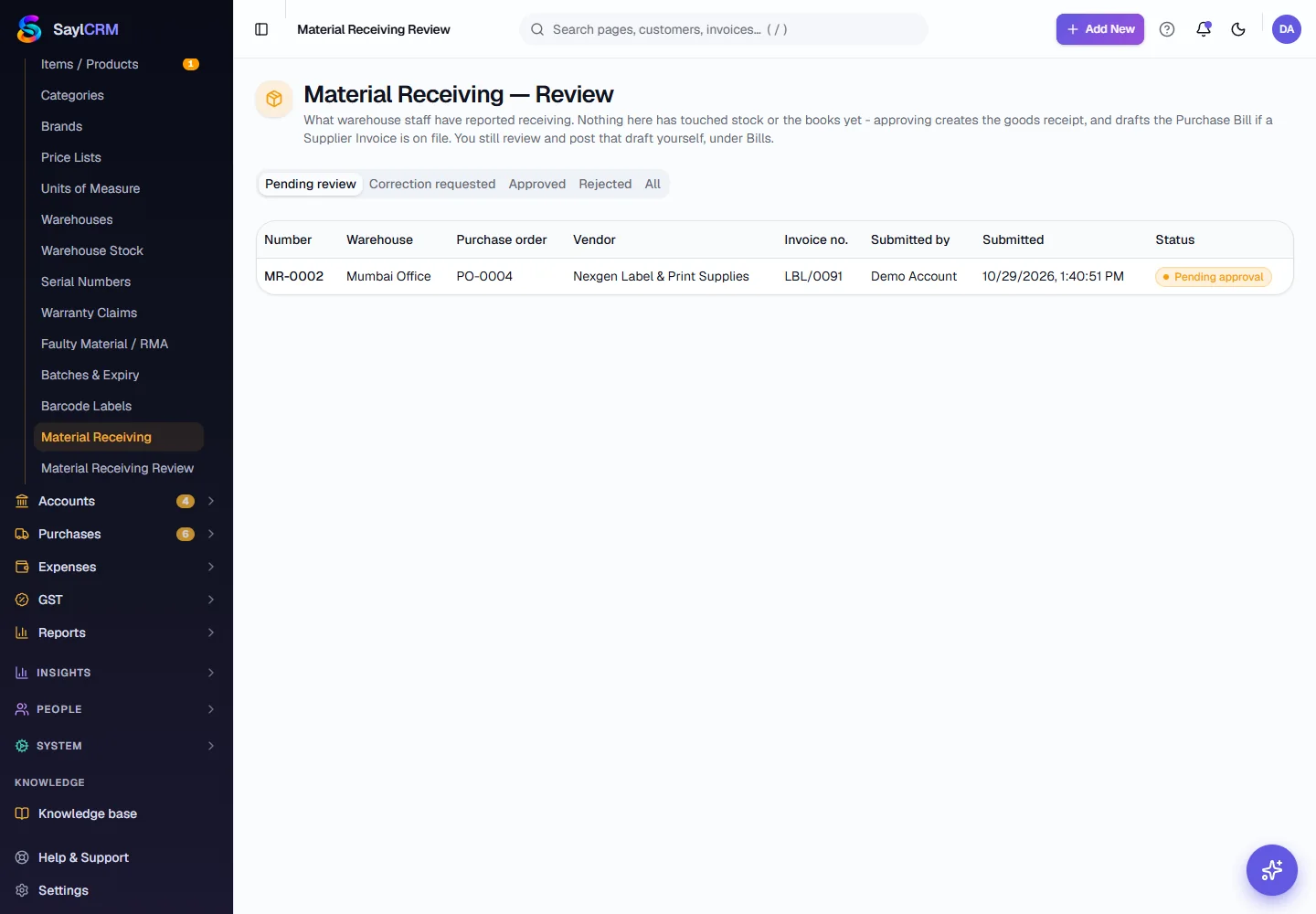
Finance → Inventory → Material Receiving Review. It lists the receipts waiting for you with their number, warehouse, purchase order, vendor, supplier invoice number, who submitted it, when, and the status.
- 2
Check the receipt against the paperwork
Click a receipt. Compare the quantities under Lines received with the delivery challan and the supplier invoice attached under Supporting documents. The history on the right shows who created and submitted it and when.
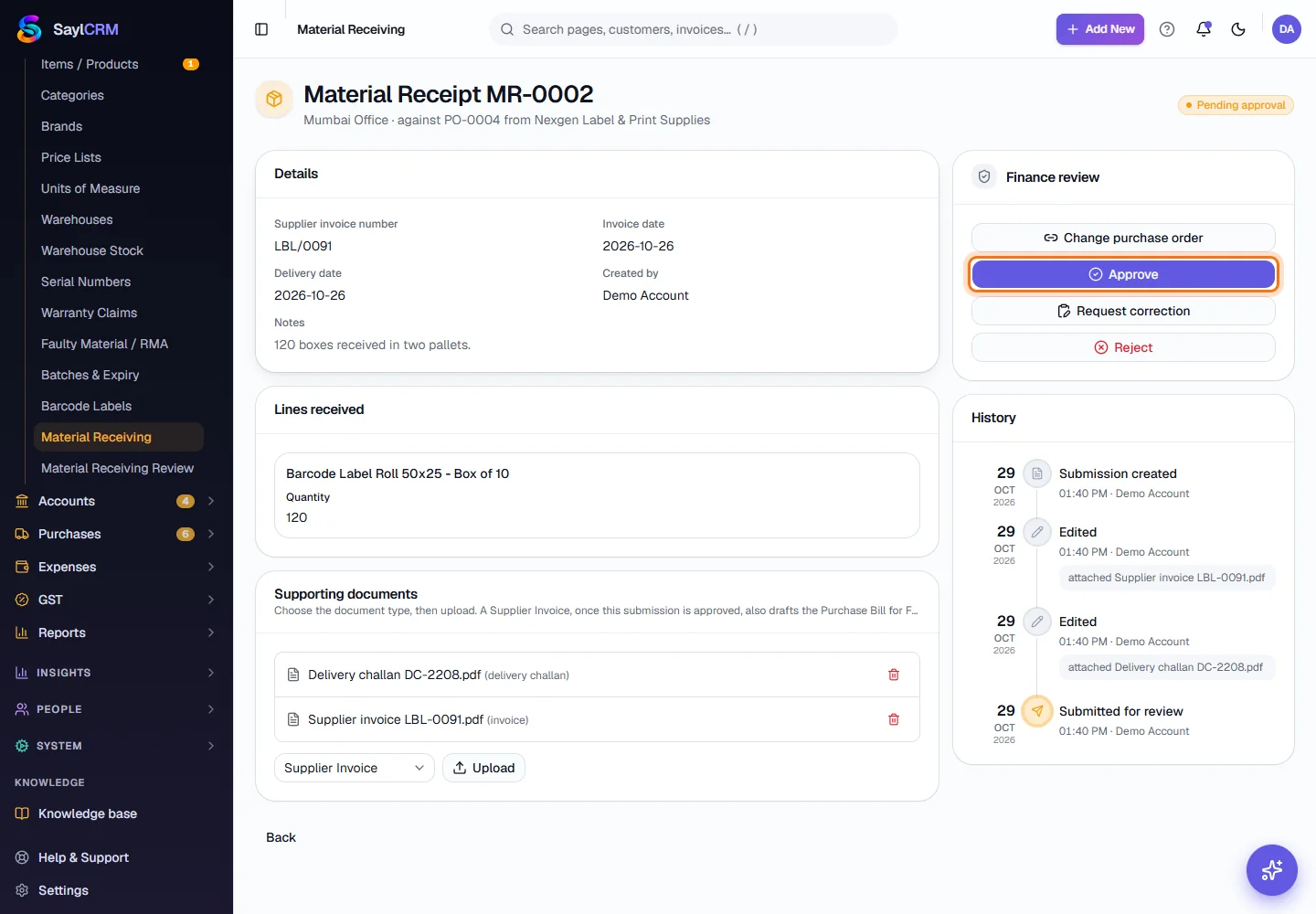
The Finance review panel: Approve (highlighted), Request correction and Reject. - 3
Approve it
If everything matches, click Approve. Sayl creates the goods receipt, adds the stock to the warehouse, and, if a supplier invoice is attached, drafts the purchase bill. The warehouse is notified. Open the draft under Purchases → Bills to check and post it.
- 4
Send it back for correction
If something is wrong but fixable - the quantity, the invoice number, a missing document - click Request correction, write exactly what to fix, and click Confirm. The warehouse can edit and resubmit the same receipt, and it comes back to this queue.
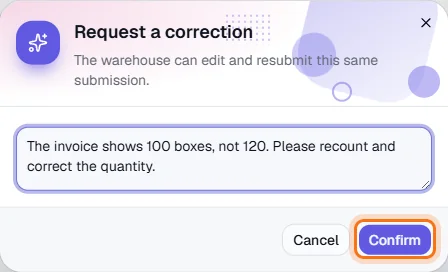
Say what needs correcting; the warehouse sees this reason. - 5
Reject a receipt
If the goods should not be accepted at all - damaged, the wrong items, not ordered - click Reject, give the reason and confirm. A rejected receipt adds no stock and creates no bill, and stays as a record.
- 6
Look back at what was approved
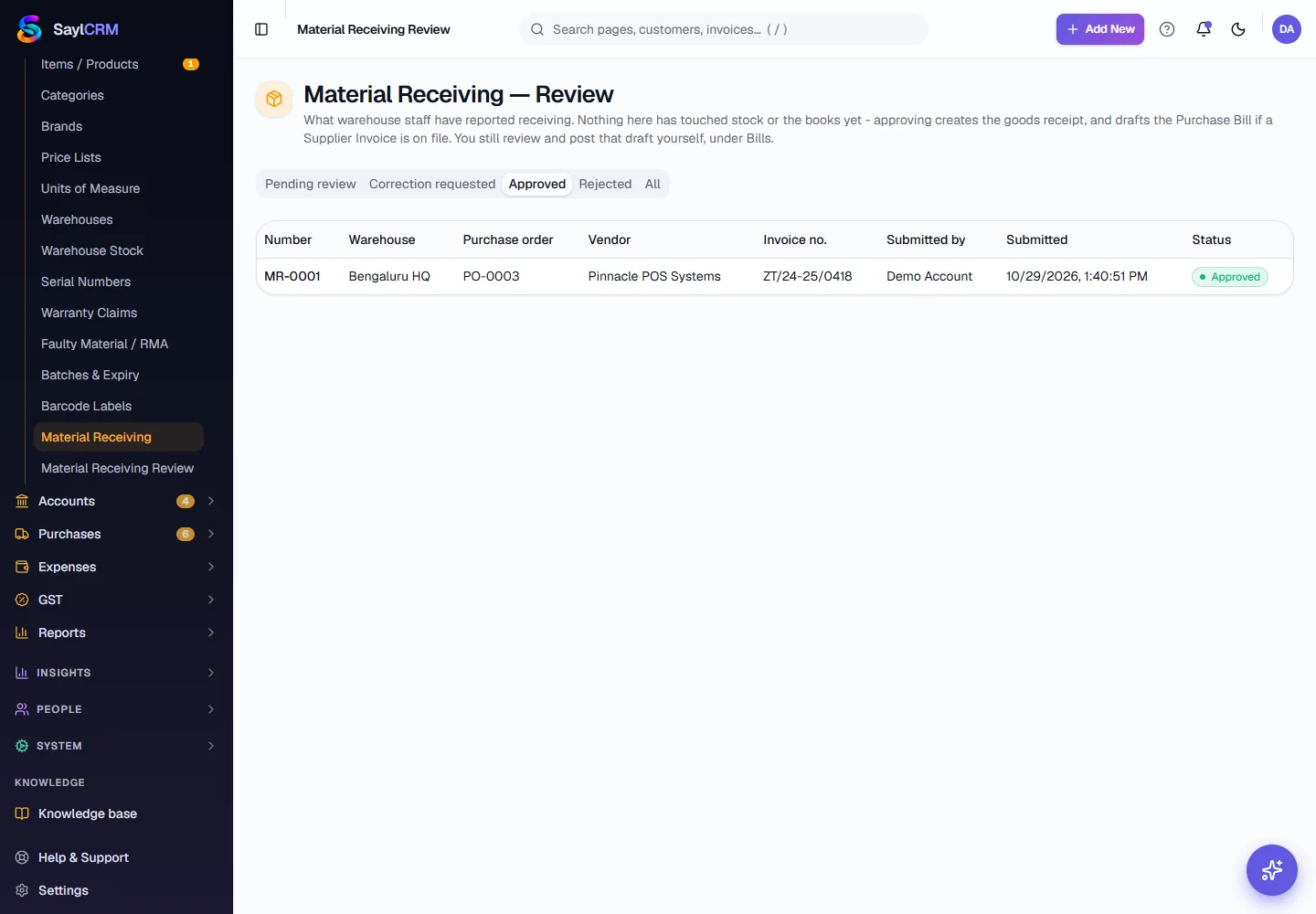
Switch the tab to Approved to see every receipt that went into stock. Open one to see its goods receipt number and, if a bill was drafted from the invoice, the bill reference.
Key fields
- Change purchase order
- Attach or replace the purchase order a receipt is against, before approving.
- Approve
- Creates the goods receipt, adds the stock and drafts the bill when a supplier invoice is on file.
- Request correction (reason)
- Sends it back to the warehouse to fix and resubmit. The reason is required.
- Reject (reason)
- Refuses the receipt. The reason is required and nothing is added to stock.
Tips
- Match the quantity to the delivery challan first, then the invoice - they should agree before you approve.
- A drafted bill is a starting point: check it and post it under Bills, as you would any other bill.
- Prefer Request correction to Reject when the goods are fine but the paperwork is wrong - the receipt keeps its history.