
Finance, GST & Accounting · Expenses
Petty Cash
Give a department a float for small expenses, follow it from request to payment, and settle it against the bills.
What it is for
Petty cash is the small float a department keeps for everyday spending - courier charges, repairs, tea, local travel. Each float goes through the same life: requested, approved, paid out, spent against bills, and settled.
The page shows every float, who holds the cash and what is waiting for you to approve, pay or verify.
How it works
- A float moves through five steps: Requested, Approved, Cash given, Submitted (the holder has entered the expenses and sent them for checking) and Settled.
- The person holding the cash enters each expense with its bill. Finance verifies each one against its bill - an expense that is rejected has to be returned, so its cash goes back into the balance.
- Money that was not spent is handed back when the float is settled. Everything posts to your books as journal entries, which the float's page lists under Accounting.
Step by step
Every screenshot is from the live demo. The highlighted button is the one to click - nothing here is saved in the demo, so you can follow along freely.
- 1
Open Petty Cash
Finance → Expenses → Petty Cash. Four cards show the cash with custodians, what has been spent from open floats, how many floats are waiting for approval or payment, and how many are waiting to be verified. Use the filters to see those that Need action, are Cash out, Settled, or Rejected / cancelled.
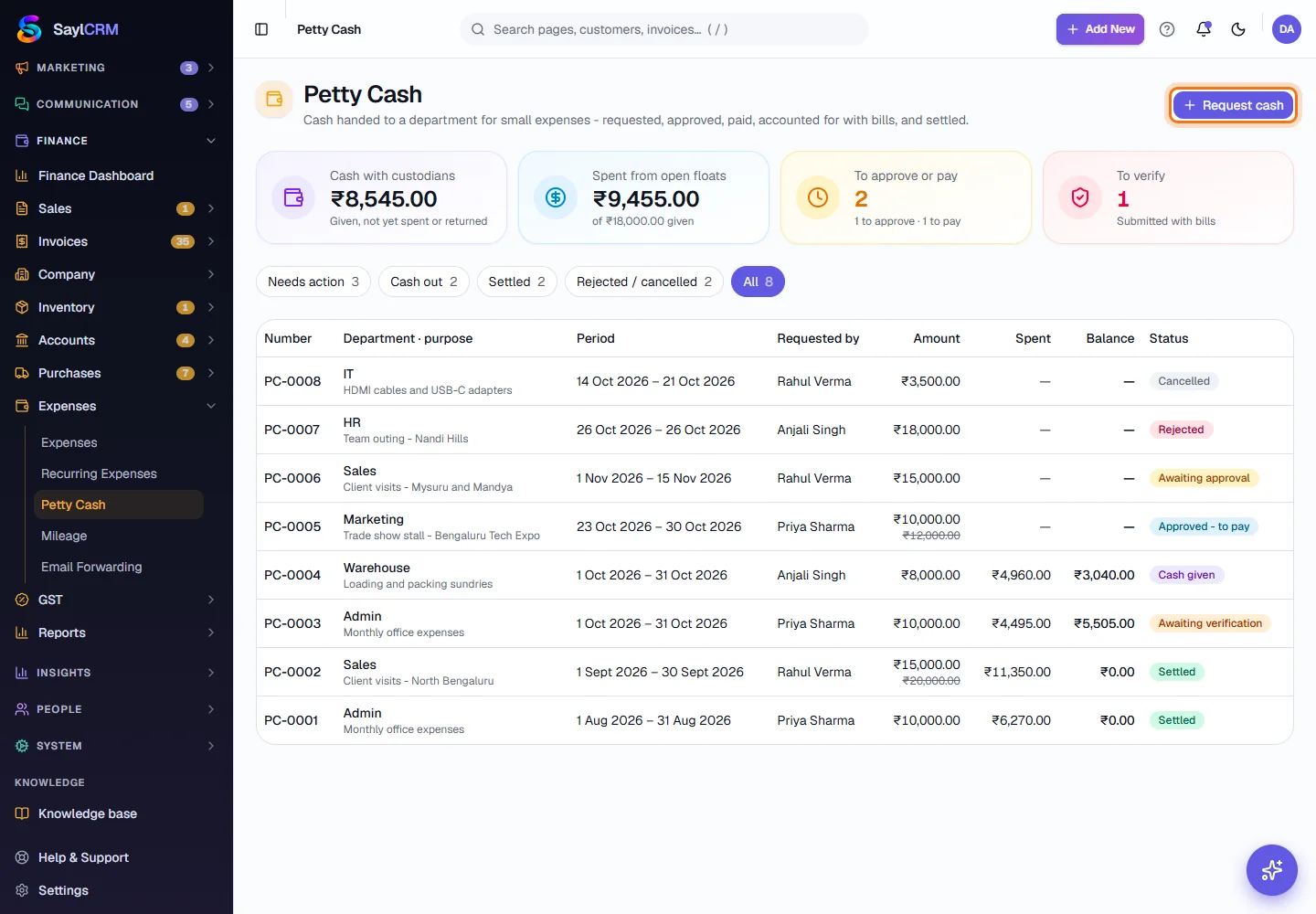
Request cash (highlighted) is at the top right. - 2
Request cash
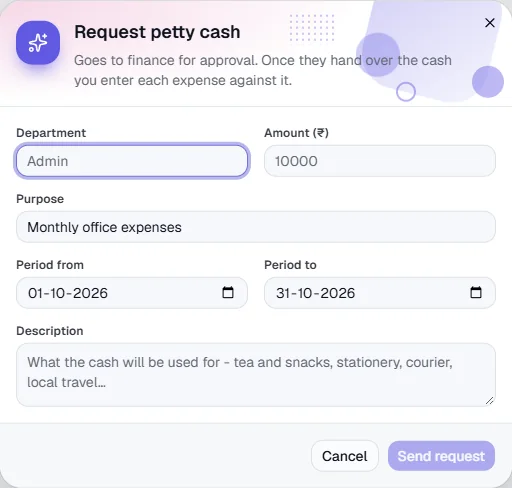
Click Request cash. Choose the department, enter the amount, the purpose, the period the cash will cover and a short description, then click Send request. It goes to Finance for approval.
- 3
Approve or reject a request
Open a request that is Awaiting approval. Click Approve to grant it - you can approve less than was asked - or Reject to turn it down. The holder is told which.
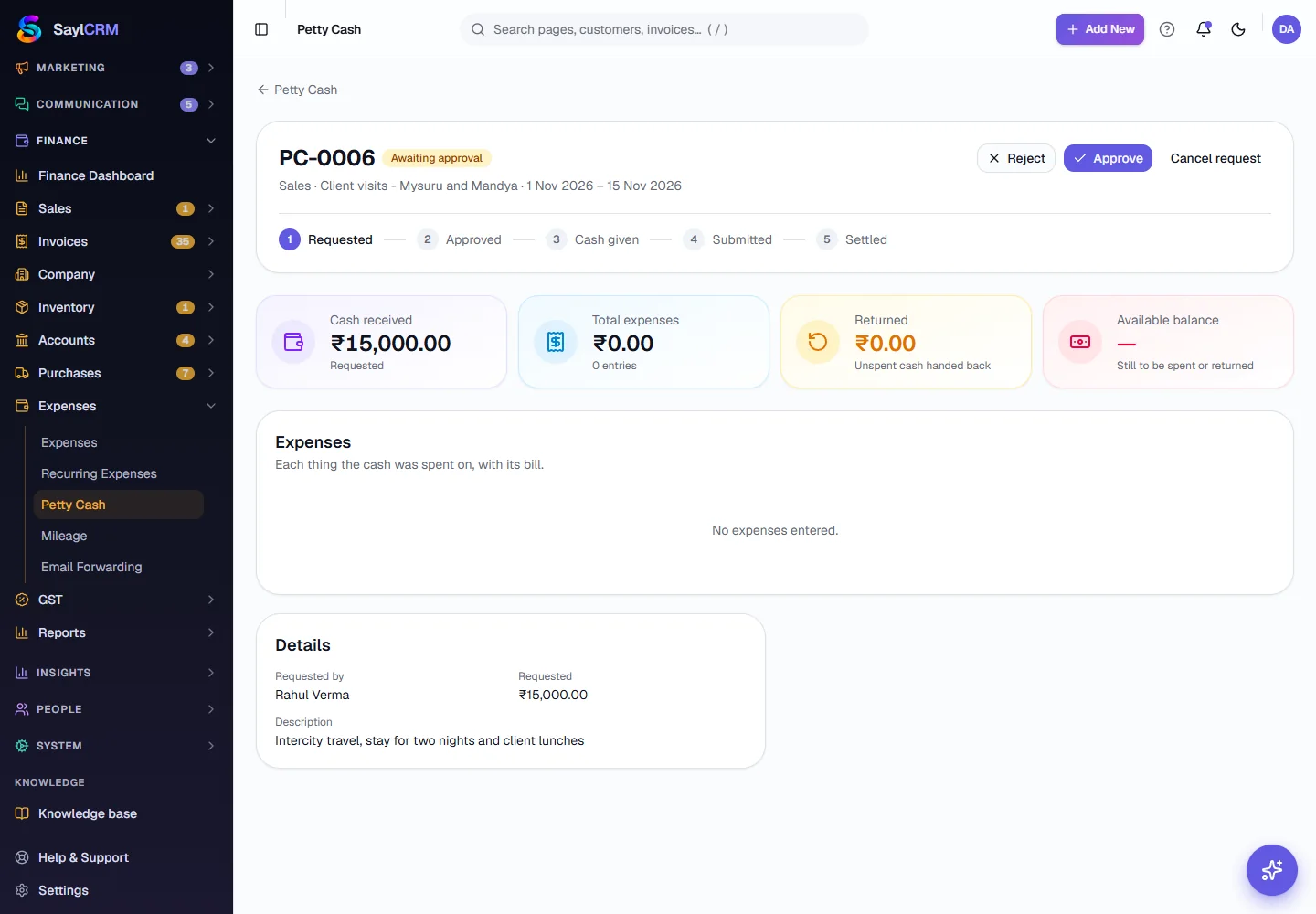
Reject and Approve are at the top right of the request. - 4
Pay it out
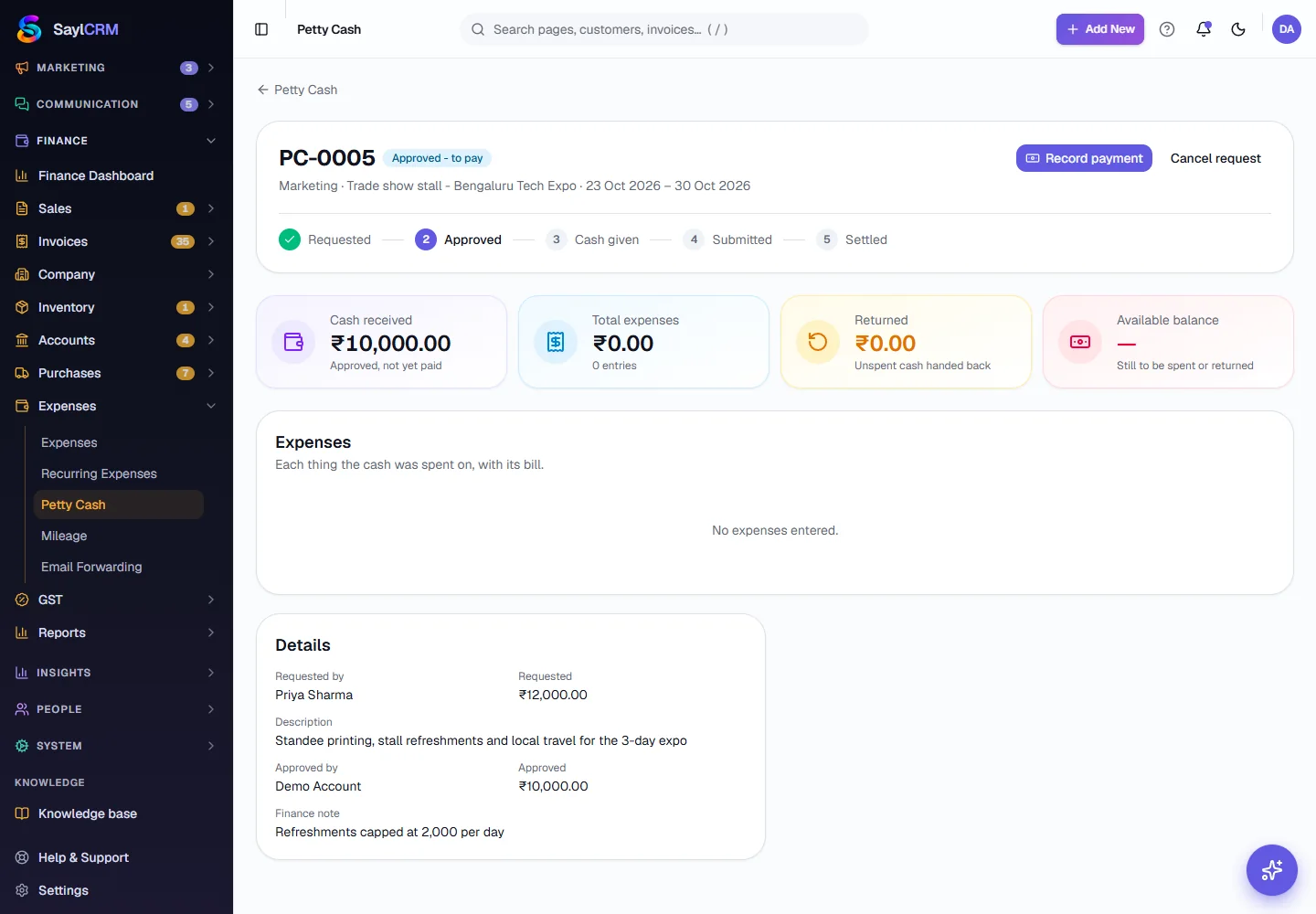
An approved request shows Record payment. Click it, choose how the cash left (a bank account or cash in hand) and confirm. The float moves to Cash given and the money is booked out of that account.
- 5
Enter the expenses
The holder opens the float and clicks Add expense for each thing bought - date, what it was, the category, the vendor and bill number, the amount, and a photo of the bill. The cards show how much has been spent and the balance still to be spent or returned.
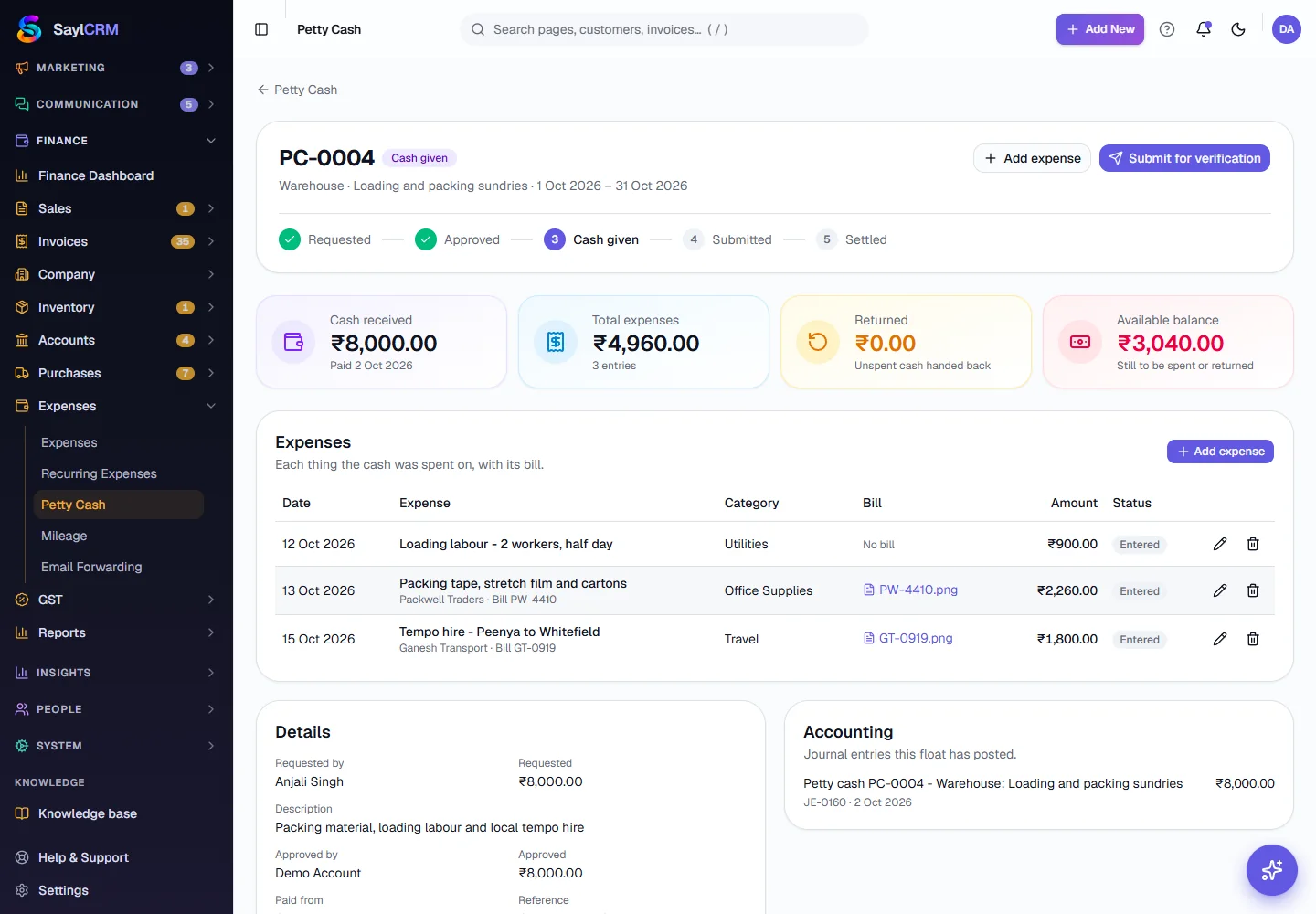
A float with ₹8,000 given and ₹4,960 spent so far. - 6
Submit and verify
When the cash is used up, the holder clicks Submit for verification. Finance then checks each expense against its bill: the tick verifies it, the cross rejects it. Click Verify & settle when done, or Send back if the holder must fix something.
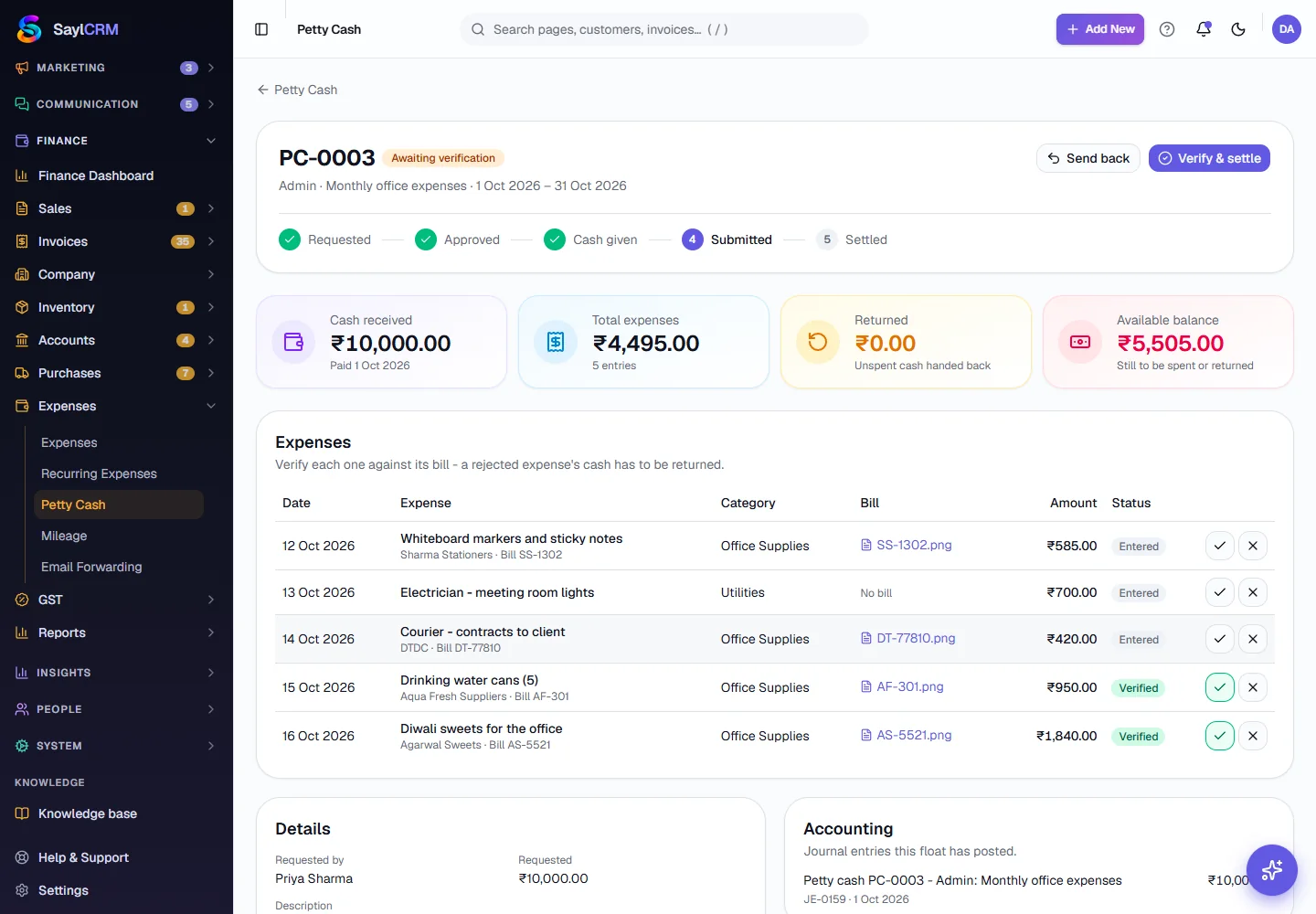
Verify each expense; Verify & settle (top right) closes the float. - 7
See a settled float
A settled float shows what was spent, what was rejected, the unspent cash that was returned and the date it was handed back, and a balance of ₹0.00 - fully accounted for.
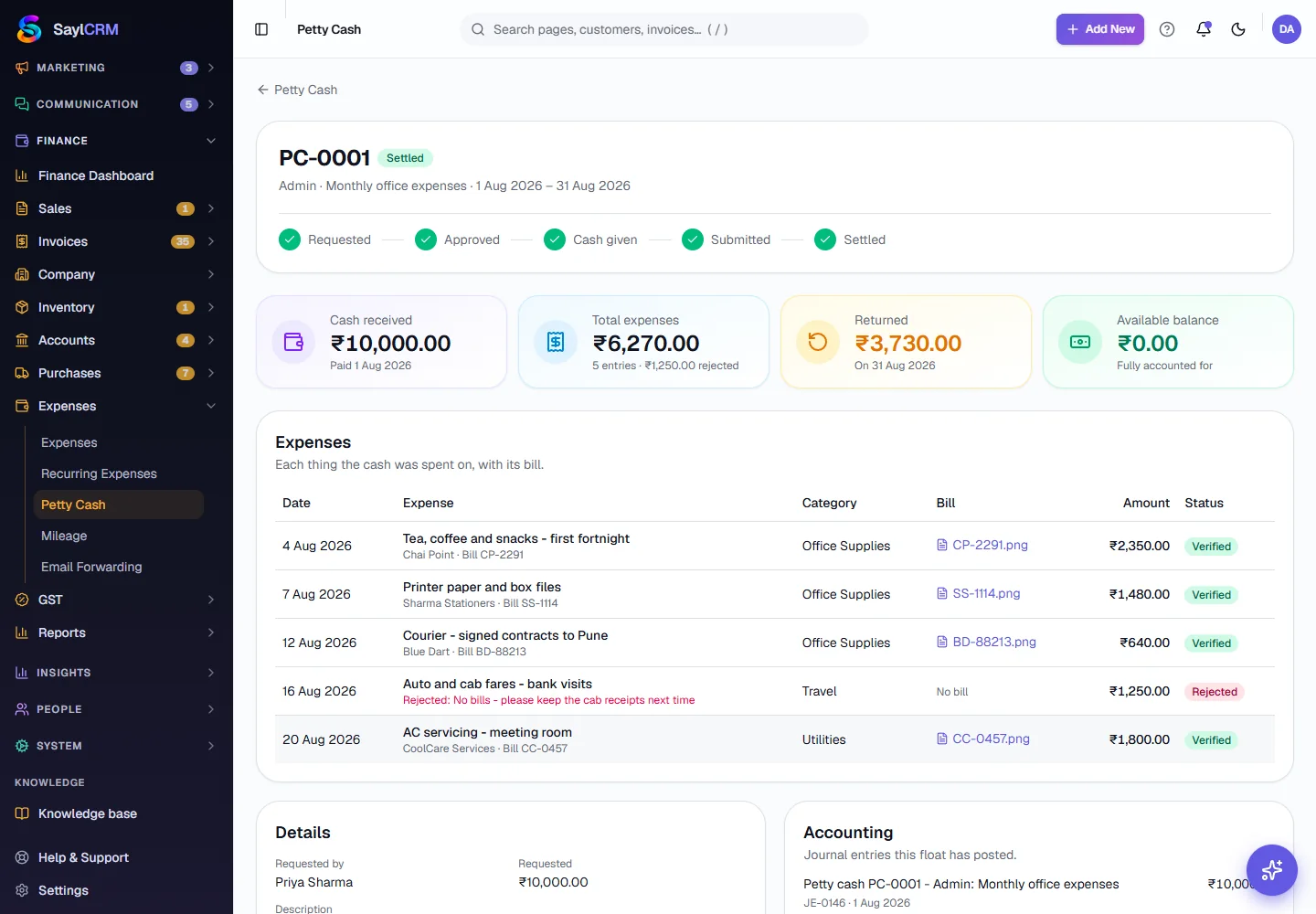
Key fields
- Department
- Who the cash is for. It also shows on the float's journal entries.
- Amount
- The size of the float requested. Finance can approve a different amount.
- Purpose and period
- What the cash is for and the dates it covers.
- Expense bill
- A photo or PDF of the bill, so Finance can verify the expense.
- Returned
- Unspent cash, or the cash of a rejected expense, handed back at settlement.
Tips
- Ask for a float per period, such as one per month per department, so each one settles cleanly.
- Photograph the bill the day you spend - an expense with no bill is the first thing Finance rejects.
- Keep an eye on the To approve or pay card: a request that sits there means someone is waiting for cash.